You’ve landed a shell on a Windows lab box, or you’re just staring at a blue PowerShell window at work. You type ls, it works, and you assume it’s Bash with a different colour scheme. It isn’t. If you treat PowerShell like a text shell, you’ll fight it. If you treat it like an object shell, a lot of hard tasks become one-liners.
This post walks through the PowerShell commands you’ll use every day. It covers how the object pipeline works, how to find commands on your own, how to handle files, processes and services, and how to export results. It ends with a short security section on execution policy and basic triage. Every command and output below was run on Windows PowerShell 5.1 (5.1.26100) on Windows 11.
Run these examples on your own machine or a lab VM only.
Before you start: open the shell and check your version
Open Windows PowerShell from the Start menu. You don’t need admin rights for anything here except Update-Help. Check which version you’re on first, because a few behaviours differ between editions:
$PSVersionTable.PSVersionMajor Minor Build Revision
----- ----- ----- --------
5 1 26100 9444Everything below was tested on Windows PowerShell 5.1. PowerShell 7 (pwsh) differs in a few places noted along the way, such as JSON enum handling and which aliases exist on Linux and macOS.
What PowerShell is: objects, not text
In Bash, ps aux | grep ssh passes text from one command to the next. You then cut columns out of that text with awk or cut, and the parsing breaks when the output format changes.
PowerShell passes .NET objects down the pipeline. A service isn’t a line of text. It’s a System.ServiceProcess.ServiceController object with properties like Status, Name and StartType. You filter and sort on those properties by name, with no string parsing.
(Get-Service -Name Spooler).GetType().FullName
# System.ServiceProcess.ServiceController
The table you see on screen is just how PowerShell chose to display the object. The object behind it carries much more data.
The Verb-Noun naming convention
Cmdlets follow a Verb-Noun pattern: Get-Process, Stop-Process, New-Item, Remove-Item. The verbs come from an approved list, so once you know Get, Set, New, Remove, Start and Stop, you can guess most command names.
Get-Verb                        # list the approved verbs
(Get-Verb | Measure-Object).Count # 98 on this 5.1 machine98The convention makes the shell predictable. If Get-Service exists, Start-Service, Stop-Service and Set-Service almost certainly do too.
Discovery: Get-Command, Get-Help, Get-Member
You don’t need to memorise PowerShell. These three cmdlets let you find everything else.
Get-Command finds commands
Get-Command -Verb Get -Noun *Process*
Get-Command -Noun Service
Get-Help explains them
Get-Help Get-ChildItem
Get-Help Get-ChildItem -Examples
Get-Help Get-ChildItem -Online
On a fresh Windows install the full help files are not present. Get-Help shows only partial help and tells you to run Update-Help:
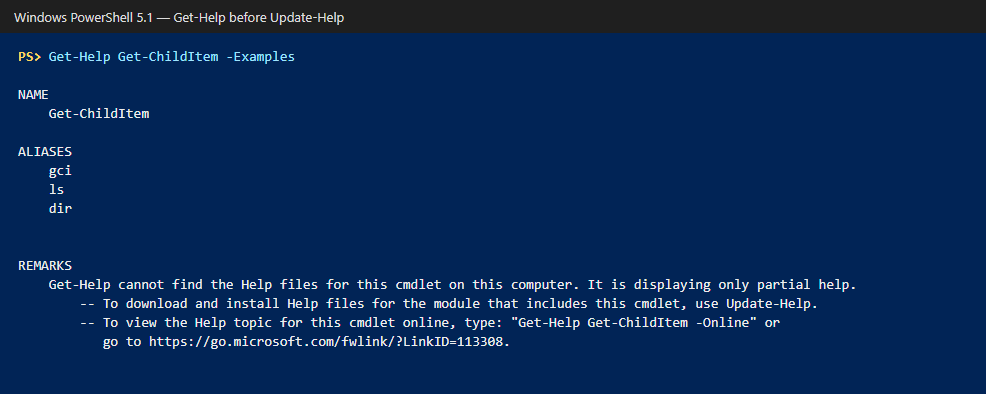
In Windows PowerShell 5.1, Update-Help needs an elevated (Run as administrator) session to update help for the core modules:
Update-HelpIf you can’t elevate, -Online opens the same documentation in your browser.
Get-Member shows what an object really is
This is the most useful cmdlet for beginners. Pipe anything to Get-Member to see its type, properties and methods.
Get-Service -Name Spooler | Get-Member -MemberType Property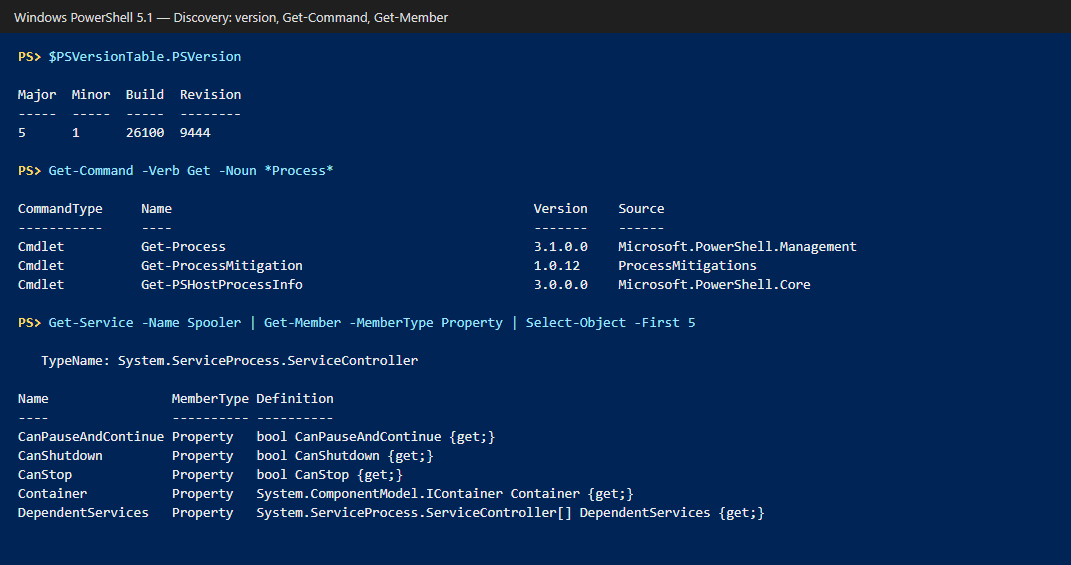
Once you know the property names, you know what you can filter, sort and select on.
Navigation and files
The file cmdlets cover the same ground as pwd, cd, ls, cp, mv, rm and cat:
Get-Location                                   # where am I?
# Work in a dedicated lab folder instead of the shared TEMP root
New-Item -Path $env:TEMP\ps-lab -ItemType Directory -Force
Set-Location -Path $env:TEMP\ps-lab            # change directory
Get-ChildItem                                  # list items
Get-ChildItem -Recurse -Filter *.log           # recursive, filtered

New-Item -Path .\notes.txt -ItemType File
New-Item -Path .\backup -ItemType Directory

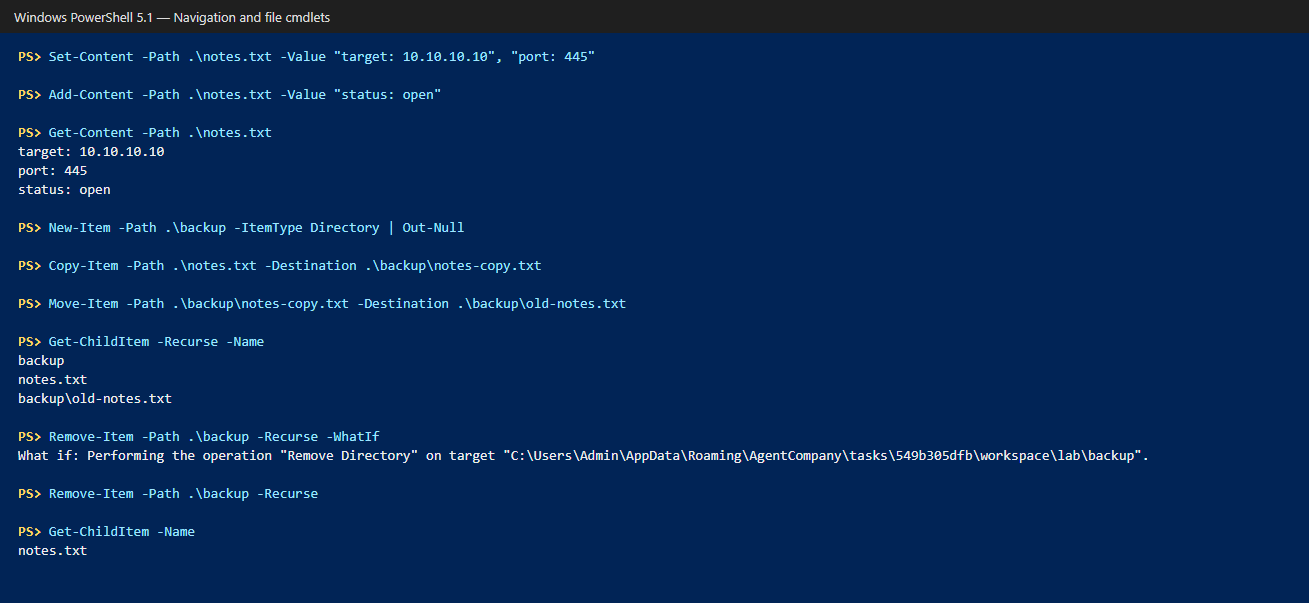
Set-Content -Path .\notes.txt -Value "target: 10.10.10.10", "port: 445"
Add-Content -Path .\notes.txt -Value "status: open"
Get-Content -Path .\notes.txt

Copy-Item -Path .\notes.txt -Destination .\backup\notes-copy.txt
Move-Item -Path .\backup\notes-copy.txt -Destination .\backup\old-notes.txt
Remove-Item -Path .\backup -Recurse -WhatIf    # preview first
Remove-Item -Path .\backup -Recurse
Set-Content overwrites a file and Add-Content appends to it. -WhatIf is your safety net: it prints what would happen without doing it.
The pipeline: filter, shape, sort, loop, count
These five cmdlets do most of the work in real PowerShell:
| Cmdlet | Job | Example |
|---|---|---|
Where-Object |
Keep objects that match a condition | Where-Object Status -eq "Running" |
Select-Object |
Pick properties or the first/last N | Select-Object -First 5 Name, Id |
Sort-Object |
Order by a property | Sort-Object WorkingSet64 -Descending |
ForEach-Object |
Run a script block per object | ForEach-Object { $_ * 2 } |
Measure-Object |
Count, sum, average, min, max | Measure-Object -Property Length -Sum |
Inside a script block, $_ is the current object. Chain the cmdlets together:
# Top 5 processes by memory, with a calculated MB column
Get-Process |
    Sort-Object -Property WorkingSet64 -Descending |
    Select-Object -First 5 -Property Name, Id,
        @{Name="MemMB"; Expression={[math]::Round($_.WorkingSet64 / 1MB)}}

# How many services are running?
Get-Service | Where-Object Status -eq "Running" | Measure-Object

# Total size of files in the current folder
Get-ChildItem -File | Measure-Object -Property Length -Sum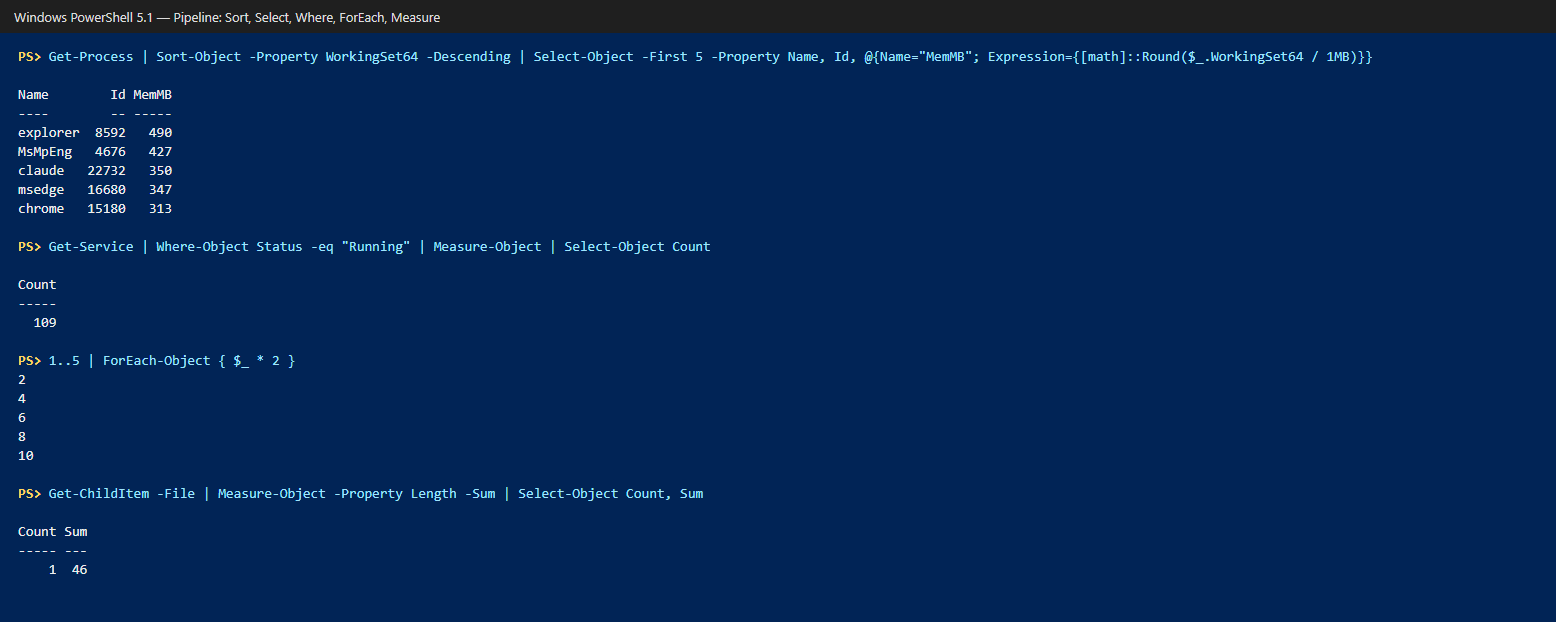
Filter as early as you can. Where-Object near the start means fewer objects flowing through the rest of the pipeline.
Processes and services
1234 below is a placeholder PID. Replace it with a real one from Get-Process, or safer still, start a throwaway process and capture its PID so you only ever stop that one:
Get-Process                          # all processes
Get-Process -Name explorer           # by name
Get-Process -Id 1234                 # by PID (replace 1234 with a real PID)

# Start a disposable process and keep its PID
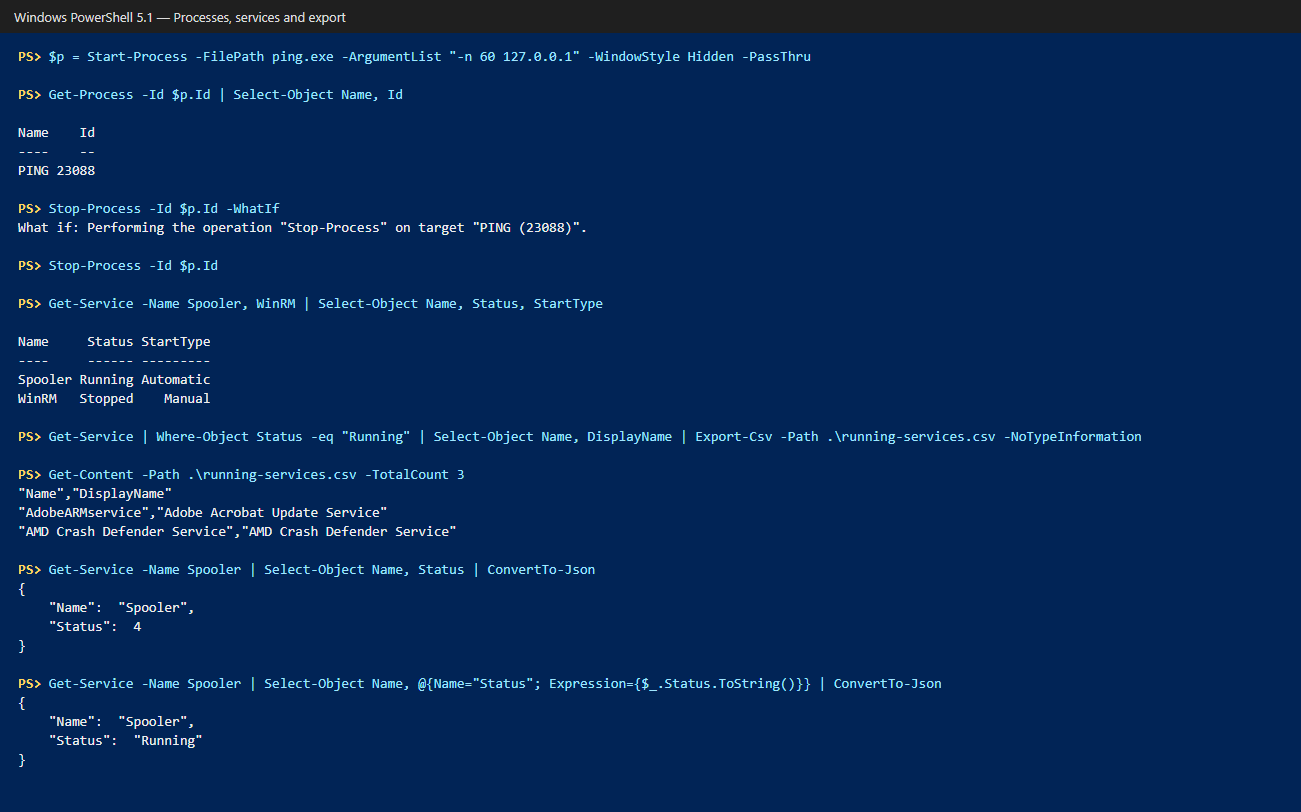
$p = Start-Process -FilePath ping.exe -ArgumentList "-n 60 127.0.0.1" -WindowStyle Hidden -PassThru
Get-Process -Id $p.Id | Select-Object Name, Id
Stop-Process -Id $p.Id -WhatIf       # preview
Stop-Process -Id $p.Id               # kill by PID

Get-Service                          # all services
Get-Service -Name Spooler, WinRM | Select-Object Name, Status, StartType
Prefer Stop-Process -Id over -Name. Killing by name stops every process with that name, including ones you didn’t mean to touch. In the screenshot below, a throwaway ping.exe is started, inspected and stopped by its exact PID:
Output and export
Because the data is objects, exporting it is one cmdlet:
# Plain text, exactly as shown on screen
Get-Process | Select-Object -First 3 Name, Id | Out-File -FilePath .\procs.txt

# CSV for Excel or a report
Get-Service | Where-Object Status -eq "Running" |
    Select-Object Name, DisplayName |
    Export-Csv -Path .\running-services.csv -NoTypeInformation

# JSON for APIs and tools
Get-Service -Name Spooler | Select-Object Name, Status | ConvertTo-Json
One gotcha in Windows PowerShell 5.1: ConvertTo-Json writes enums as numbers. The command above produced "Status": 4, not "Running". Convert the value to a string first if a human or another tool will read it:
Get-Service -Name Spooler |
    Select-Object Name, @{Name="Status"; Expression={$_.Status.ToString()}} |
    ConvertTo-Json
{
"Name": "Spooler",
"Status": "Running"
}Variables, if and loops
Variables start with $ and can hold anything, including a whole collection of objects:
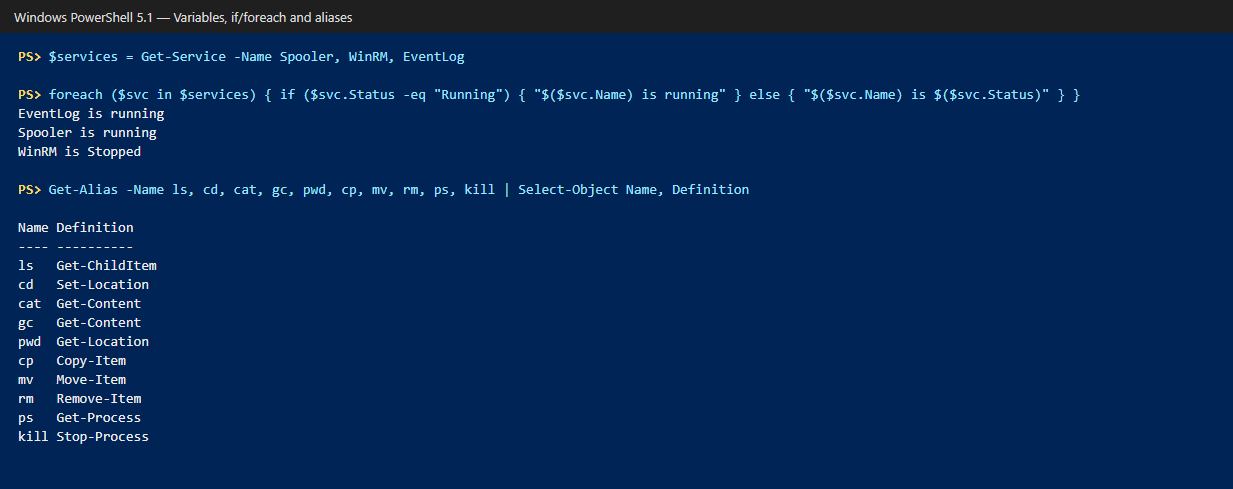
$services = Get-Service -Name Spooler, WinRM, EventLog

foreach ($svc in $services) {
    if ($svc.Status -eq "Running") {
        "$($svc.Name) is running"
    } else {
        "$($svc.Name) is $($svc.Status)"
    }
}
EventLog is running
Spooler is running
WinRM is StoppedComparison operators are words, not symbols: -eq, -ne, -gt, -lt, -like, -match. > is redirection, not "greater than". Use $( ) inside double quotes to expand a property, as in "$($svc.Name)".
Aliases: familiar names, real cmdlets
Many Unix and CMD habits work because PowerShell ships aliases for them. Get-Alias shows what each one maps to:
Get-Alias -Name ls, cd, cat, gc, pwd, cp, mv, rm, ps, kill
Get-Alias -Definition Get-ChildItem    # dir, gci, ls
ls -la                                 # Unix flags don't carry over
ls -la : A parameter cannot be found that matches parameter name 'la'.| Alias | Cmdlet | Note |
|---|---|---|
ls, dir, gci |
Get-ChildItem |
ls -la fails: the alias doesn’t accept Unix flags |
cd |
Set-Location |
|
pwd |
Get-Location |
|
cat, gc |
Get-Content |
|
cp / mv / rm |
Copy-Item / Move-Item / Remove-Item |
|
ps |
Get-Process |
|
kill |
Stop-Process |
Use aliases at the prompt and full cmdlet names in scripts. Full names are easier to read and review. Aliases also differ by platform: on PowerShell 7 for Linux and macOS, ls, cat, cp, mv, rm and ps are not aliases, so they run the native tools.
Security angle: execution policy and quick triage
Execution policy is not a security boundary
Get-ExecutionPolicy          # effective policy
Get-ExecutionPolicy -List    # policy per scope, in precedence order
If no scope sets a policy on a Windows client, the effective policy is Restricted, which blocks script files. It’s easy to assume that makes the box safe from scripts. It doesn’t. Microsoft’s own documentation says execution policy isn’t a security boundary. It exists to stop users from running scripts by accident.
In the lab, create a one-line script, then watch it get blocked under Restricted but run fine when its contents are piped to a new PowerShell process:
Set-Content -Path .\hello.ps1 -Value 'Write-Output "hello from a script"'

powershell.exe -NoProfile -ExecutionPolicy Restricted -File .\hello.ps1
# ...cannot be loaded because running scripts is disabled on this system.

Get-Content -Path .\hello.ps1 | powershell.exe -NoProfile -ExecutionPolicy Restricted -Command -
# hello from a script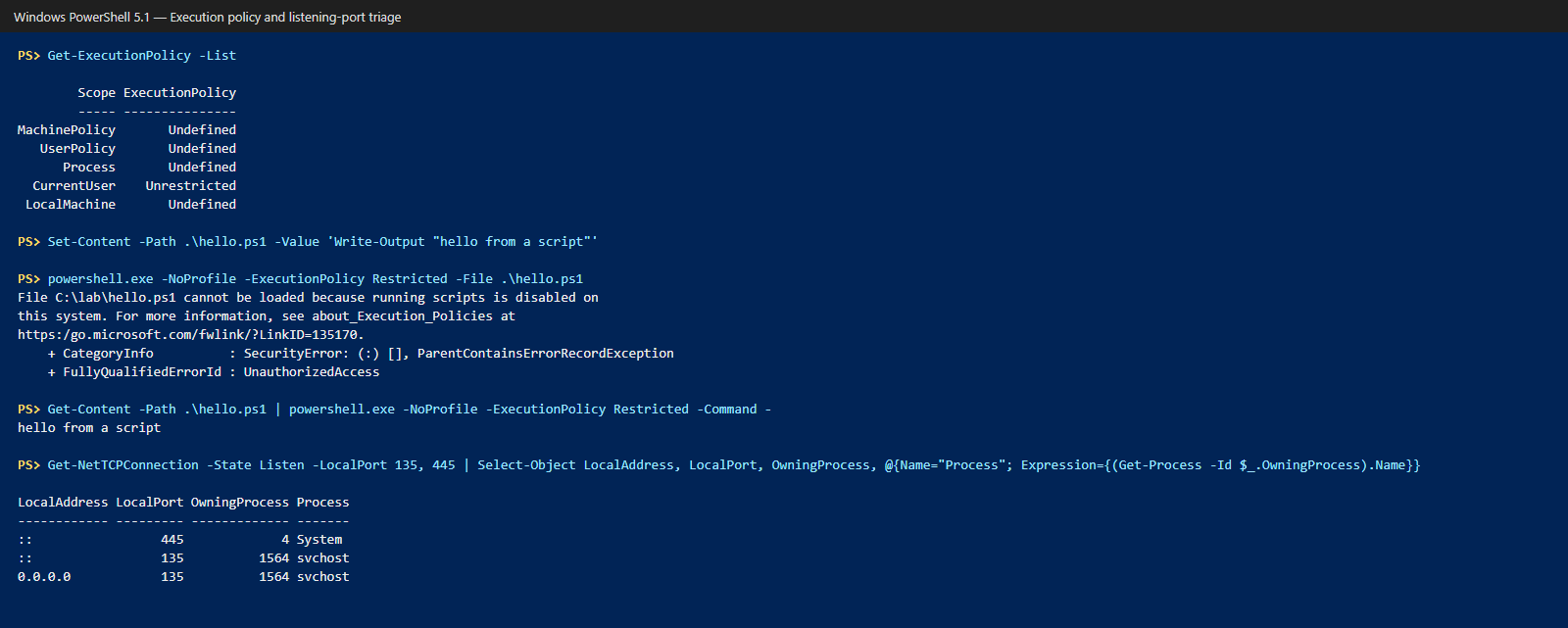
Detecting the bypass
Execution policy won’t catch that trick, but logging will. Script Block Logging records the actual code PowerShell runs, including code piped to -Command -, whatever the execution policy says. Each logged block is written as Event ID 4104 in the Microsoft-Windows-PowerShell/Operational log. On this machine the log was already enabled, and the piped hello from a script block showed up as a 4104 event:
Get-WinEvent -FilterHashtable @{
    LogName = 'Microsoft-Windows-PowerShell/Operational'; Id = 4104
} -MaxEvents 20 | Select-Object TimeCreated, Id, LevelDisplayName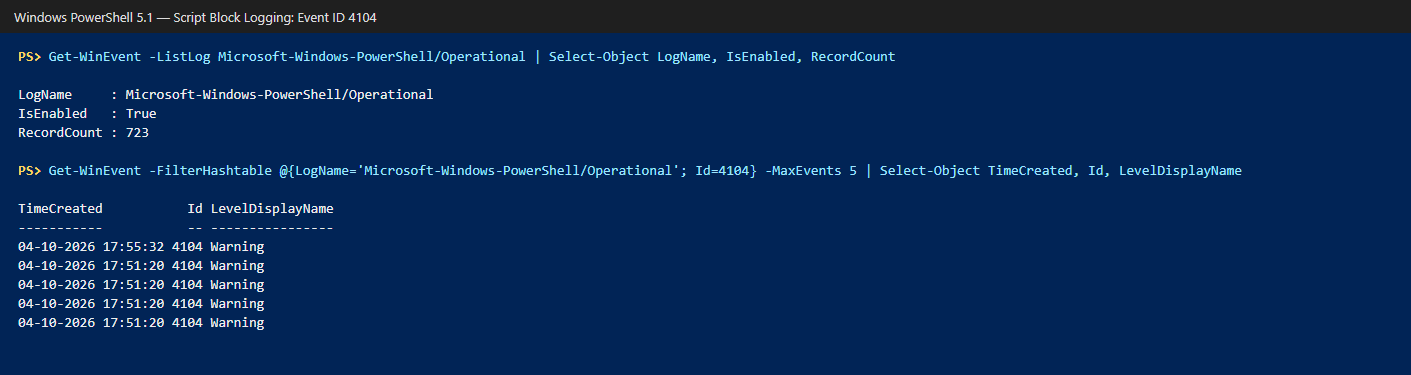
Windows auto-logs some suspicious blocks, but for full coverage you turn Script Block Logging on through Group Policy (Administrative Templates → Windows Components → Windows PowerShell → Turn on PowerShell Script Block Logging) or the matching registry value. Check whether it’s on first, rather than changing the box for no reason:
Get-WinEvent -ListLog Microsoft-Windows-PowerShell/Operational |
    Select-Object LogName, IsEnabled, RecordCount
For defenders, the real controls come from elsewhere: application control (WDAC/AppLocker), Script Block and module logging, and least privilege. Don’t rely on execution policy alone.
Basic triage with Get-Process and Get-NetTCPConnection
Two quick questions during triage are "what’s running?" and "what’s listening?":
# Listening TCP ports, mapped to the owning process name.
# Drop -LocalPort to see every listener; here we focus on 135 and 445.
Get-NetTCPConnection -State Listen -LocalPort 135, 445 |
    Select-Object LocalAddress, LocalPort, OwningProcess,
        @{Name="Process"; Expression={(Get-Process -Id $_.OwningProcess).Name}}

# Processes running from outside the usual install folders
Get-Process |
    Where-Object { $_.Path -and $_.Path -notlike "C:\Windows\*" -and $_.Path -notlike "C:\Program Files*" } |
    Select-Object Name, Id, Path
The second query will list legitimate per-user apps too, and processes you don’t have rights to inspect have an empty Path. Treat its output as a list of leads to check, not a verdict. Export either result with Export-Csv to compare against a known-good baseline later.
Key takeaways
- PowerShell pipes objects, not text. Use
Get-Memberto see what you’re working with. - Commands follow
Verb-Noun.Get-CommandandGet-Help -Examplesfind the rest. RunUpdate-Helpas admin on 5.1 to get full help. Where-Object,Select-Object,Sort-Object,ForEach-ObjectandMeasure-Objectcover most pipeline work.- Use
-WhatIfbeforeRemove-ItemandStop-Process, and kill by-Id, not-Name. Export-CsvandConvertTo-Jsonturn results into reports. In 5.1, convert enums to strings before exporting to JSON.- Aliases like
lsandcatare convenience only. Use full names in scripts. - Execution policy is a safety feature, not a security boundary.
References
- about_Execution_Policies (Microsoft Learn)
- Update-Help (Windows PowerShell 5.1) (Microsoft Learn)
- PowerShell differences on non-Windows platforms (Microsoft Learn, alias changes)
- Approved Verbs for PowerShell Commands (Microsoft Learn)
- Get-NetTCPConnection (Microsoft Learn)
- about_Logging_Windows (Microsoft Learn)
- about_Pipelines (Microsoft Learn)
- about_Comparison_Operators (Microsoft Learn)